
Video: Create Your First Project and Upload It to Your Board
The short video below shows the basic steps described on this page from start to finish (new code page, saving, selecting the board and port, uploading, the Serial Monitor and installing libraries).Coming from Arduino IDE: Where Is Everything?
1. Creating a New Project
When the IDE opens, an empty code page namedUntitled.cpp is ready; you can start typing
your code right away. To open a new code page, use one of the following:
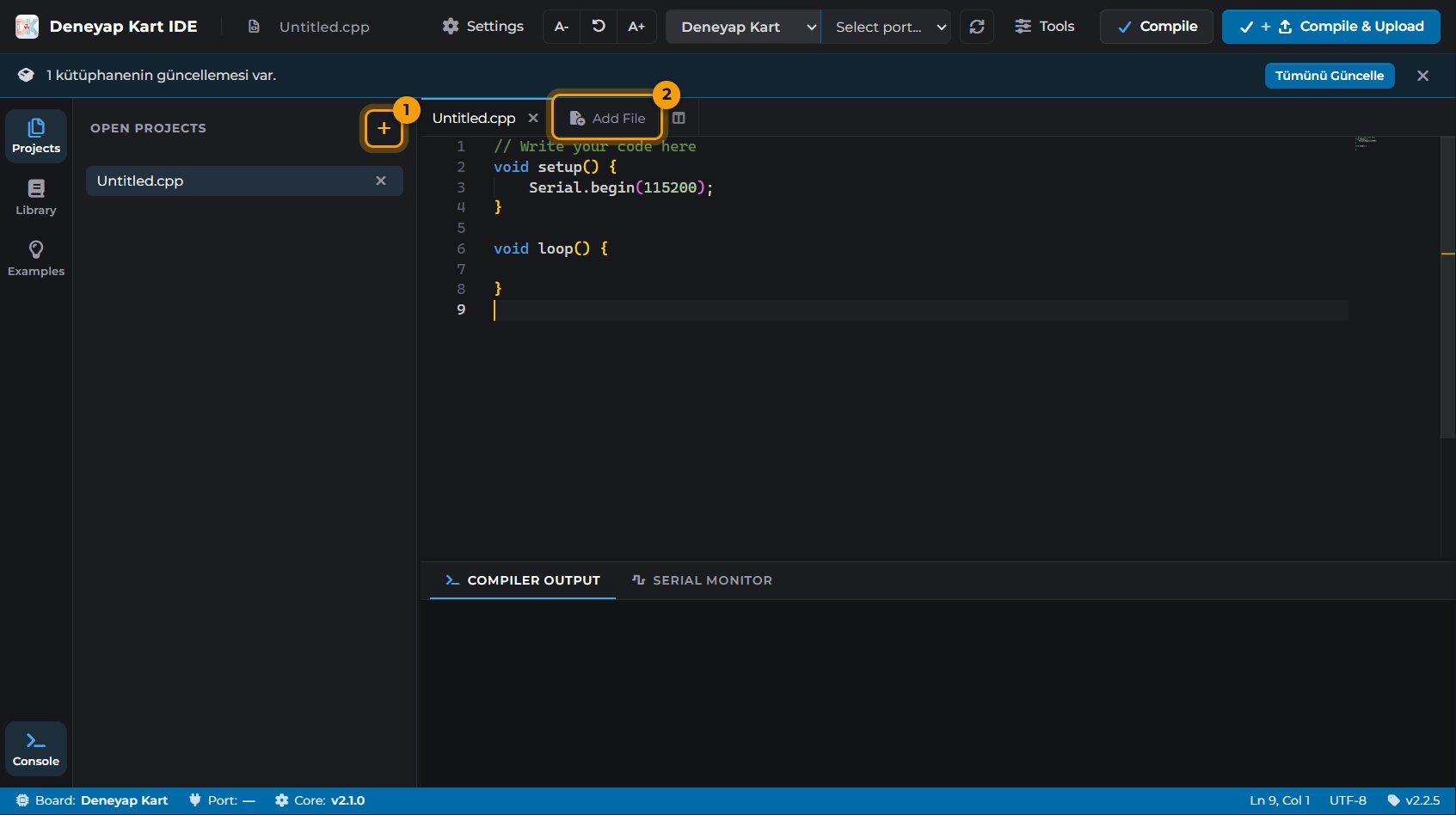
New code page: the + button in the Projects panel (1) or in the tab bar (2)
- The + button in the Projects panel header (1),
- The + button in the tab bar (2),
- Settings → New File or
Ctrl+Non the keyboard.
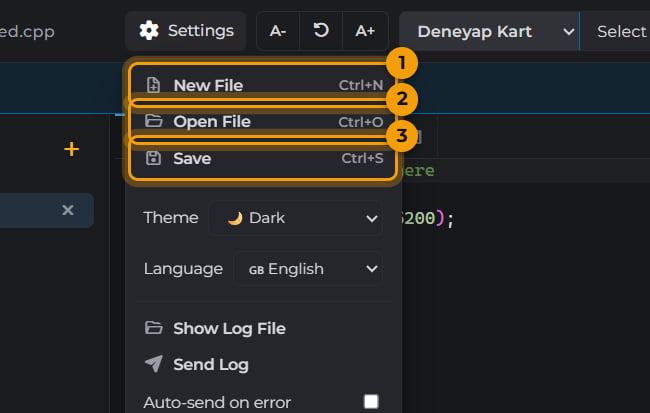
Settings menu: New File (1), Open File (2) and Save (3)
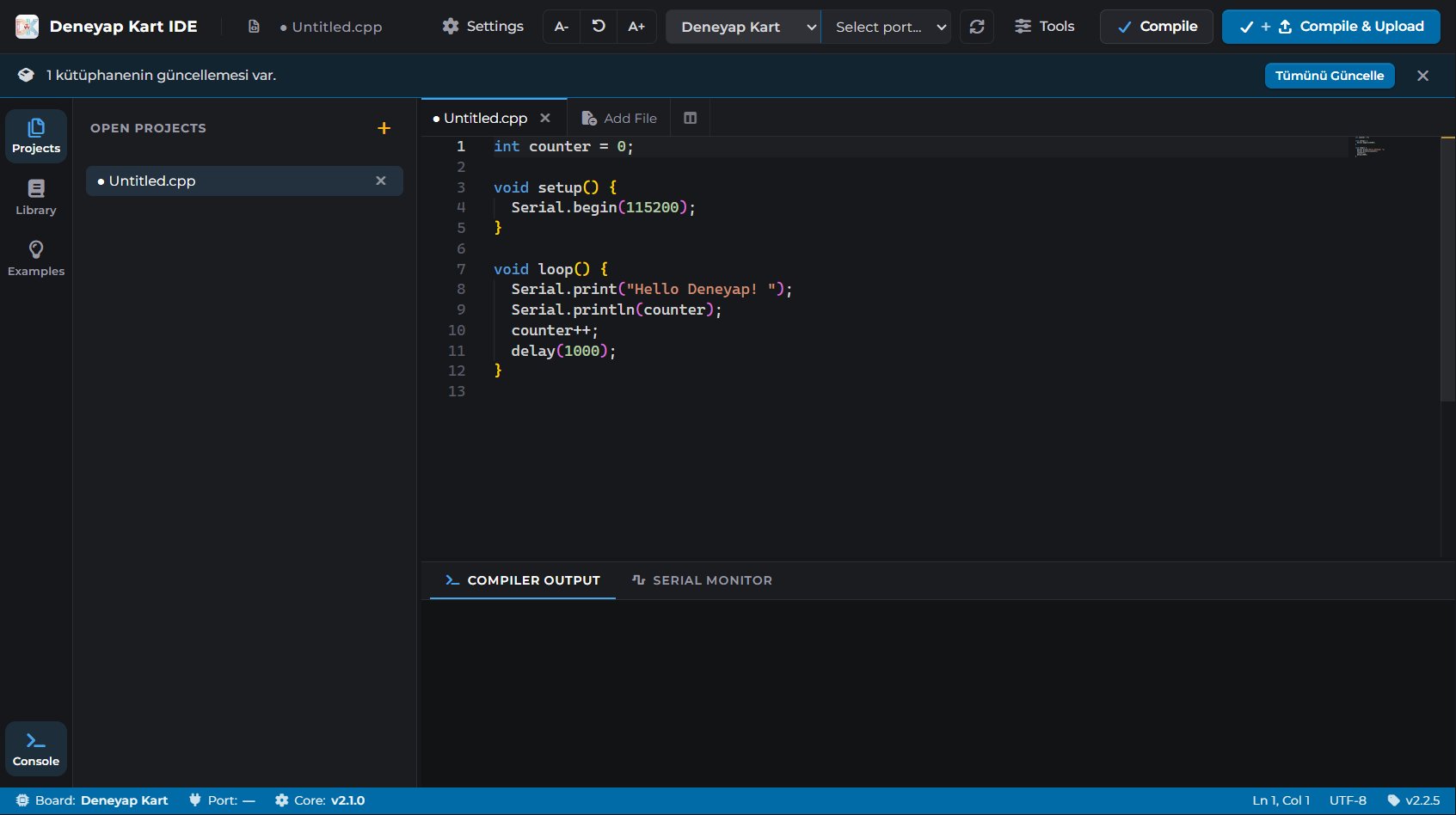
Code typed into the editor
2. Saving and Reopening a Project
Save
Ctrl+S (or Settings → Save). The first time, you are asked for a file name and
location. We recommend choosing Arduino File “.ino” as the file type, so your project
can also be opened in Arduino IDE.Check that it was saved
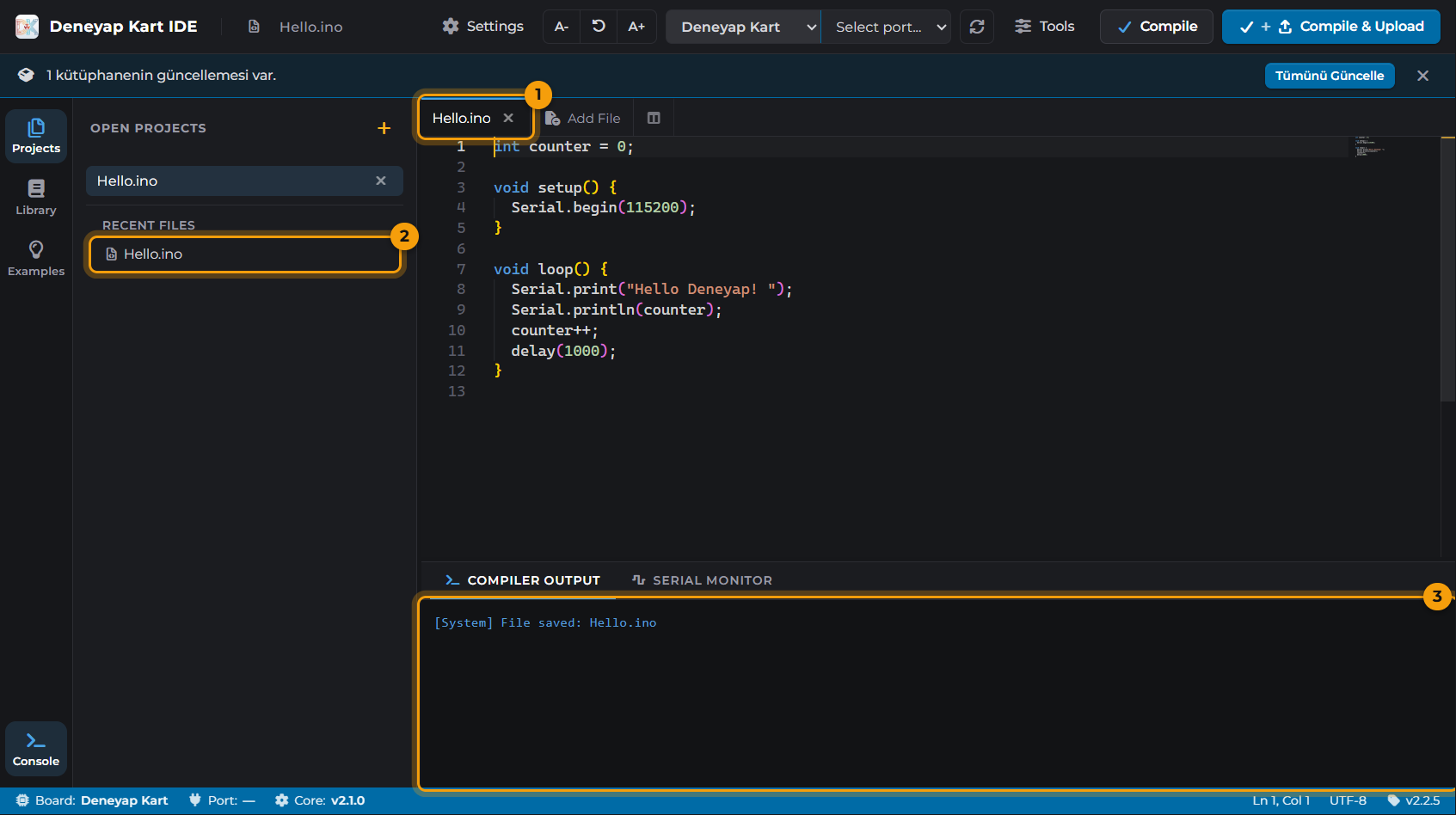
The saved file
Reopen it later
- Click the file in the Recent Files list of the Projects panel,
- or choose it with Settings → Open File (
Ctrl+O), - or drag the file and drop it onto the IDE window.
.h, .cpp) in the same folder as the file you open are added to
the project as well.3. Connecting the Board, Selecting the Board and Port
Connect the board to the computer
Select the board type
Select the port
COM3
on Windows, /dev/ttyUSB0 on macOS/Linux). If the port does not show up, press
Refresh Ports (3).
Board list (1), port list (2) and Refresh Ports (3)
Check the status bar

Status bar
4. Compiling and Uploading to the Board

Compile (1) and Compile & Upload (2) buttons
- Compile (1): Checks your code for errors; nothing is uploaded to the board.
- Compile & Upload (2): Compiles the code and uploads it to the board on the selected port.
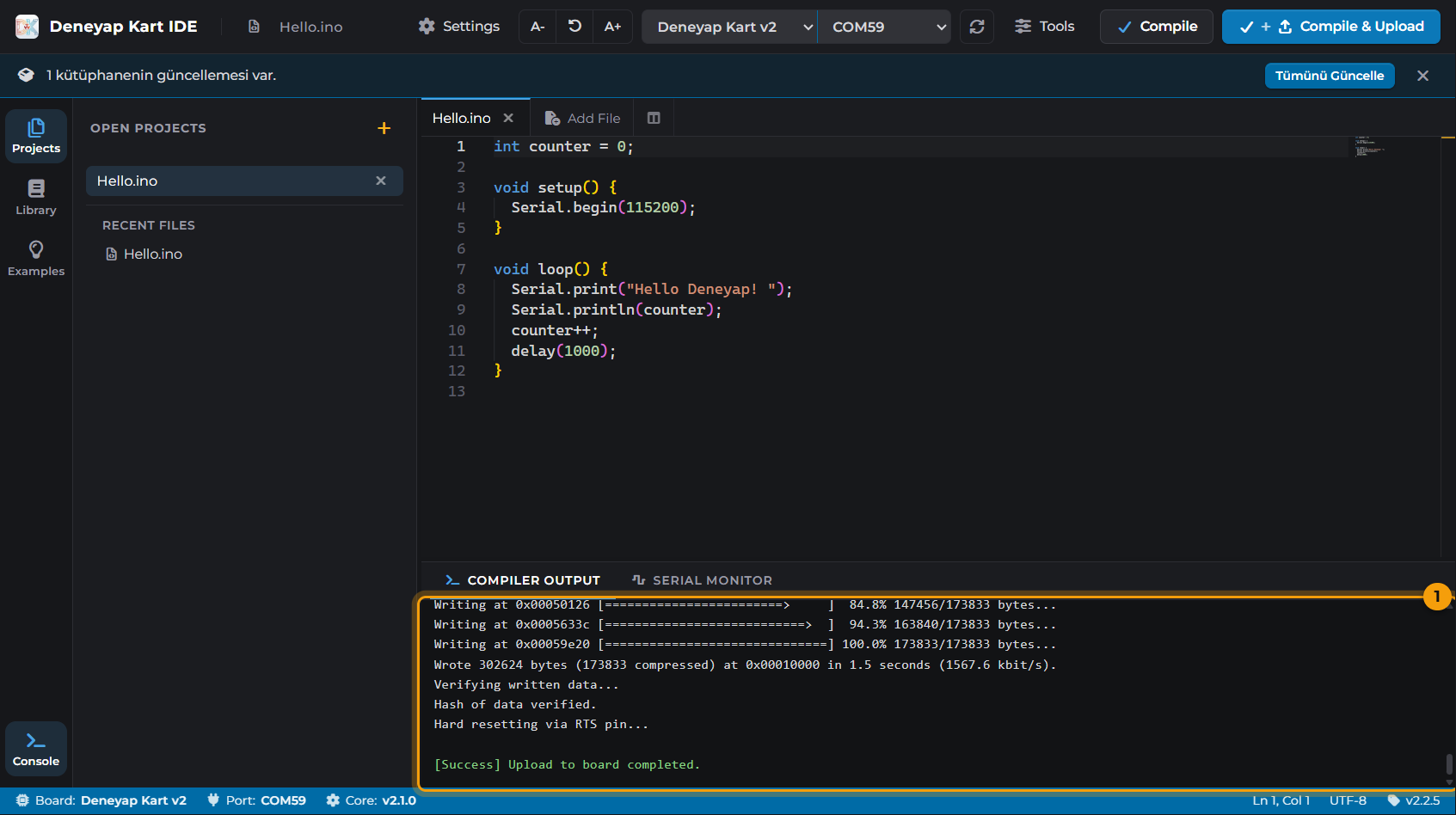
Output of a successful upload
5. Reading Data from the Board with the Serial Monitor
To see the messages your board sends withSerial.print, open the Serial Monitor tab
in the bottom panel.
Select the port
Set the baud rate
Serial.begin(...) in your code. In our
example code it is 115200.Connect
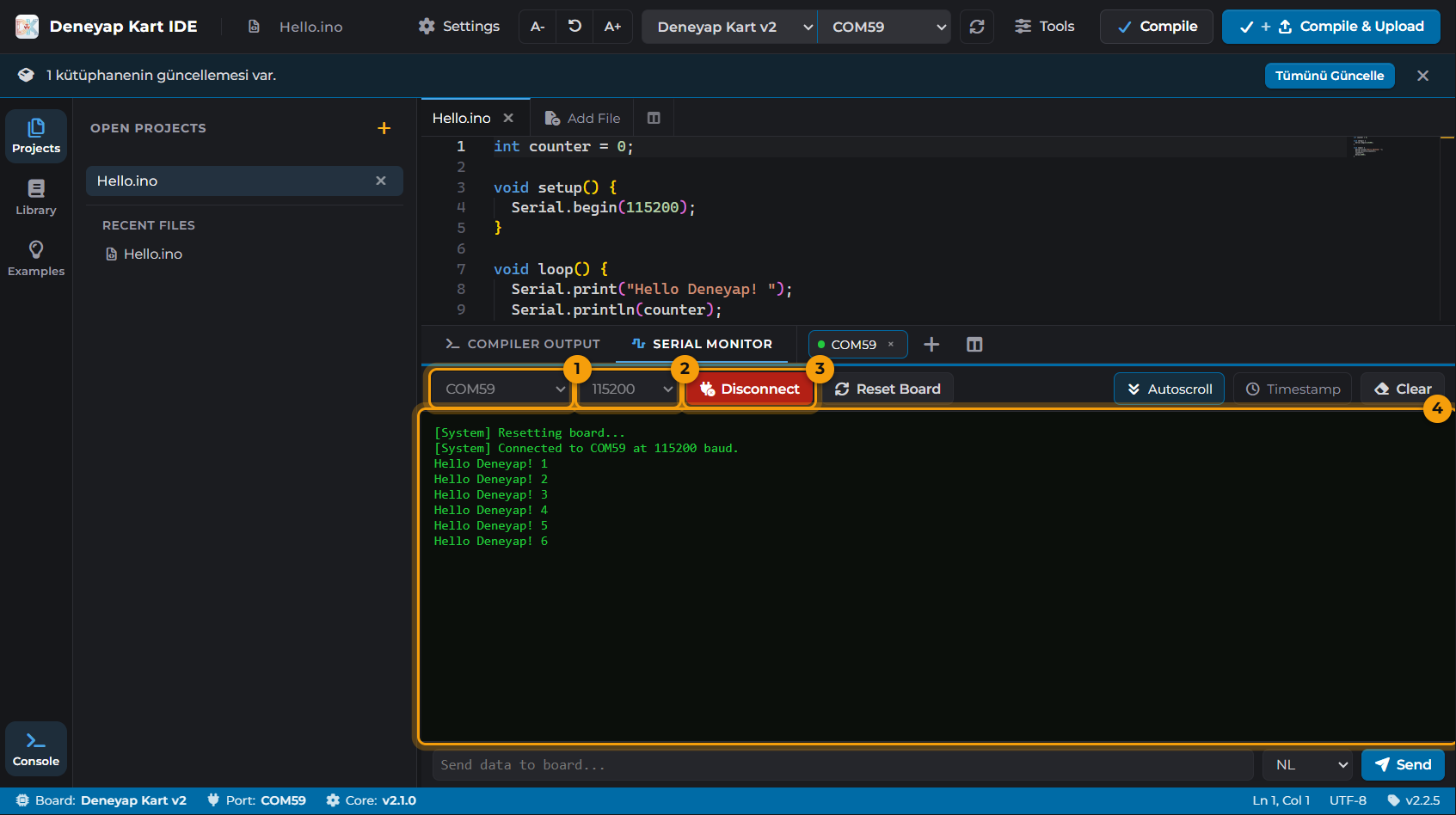
Serial Monitor: port (1), baud rate (2), Connect / Disconnect (3) and output area (4)
- Reset Board (1): Restarts the board; your program runs from the beginning. Useful for
seeing the messages printed in
setup(). - Disconnect (2): Closes the serial connection. When not connected, the same button shows Connect.
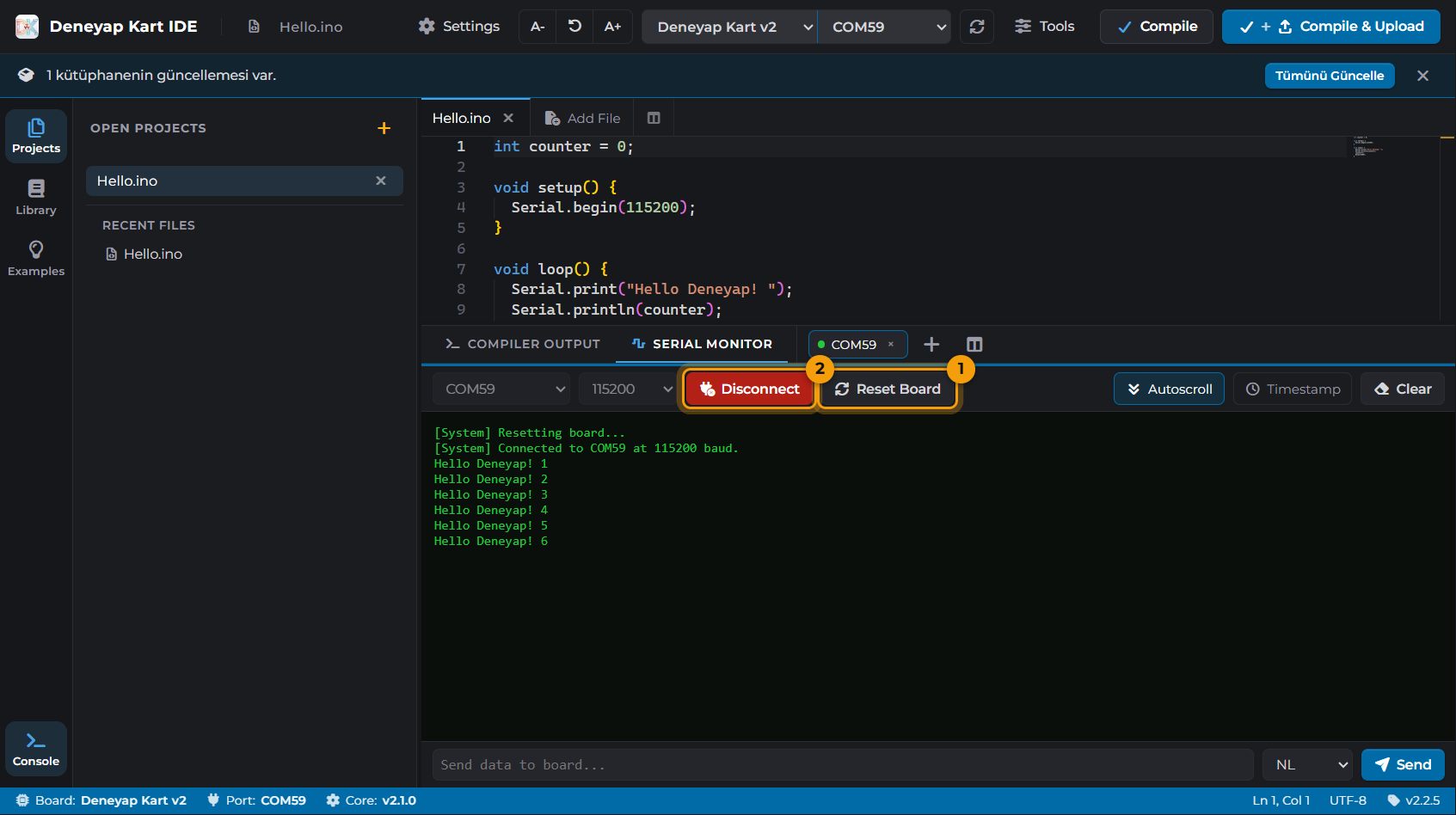
Reset Board (1) and Disconnect (2)
6. Opening Ready-Made Examples
Open the Examples panel
Pick an example
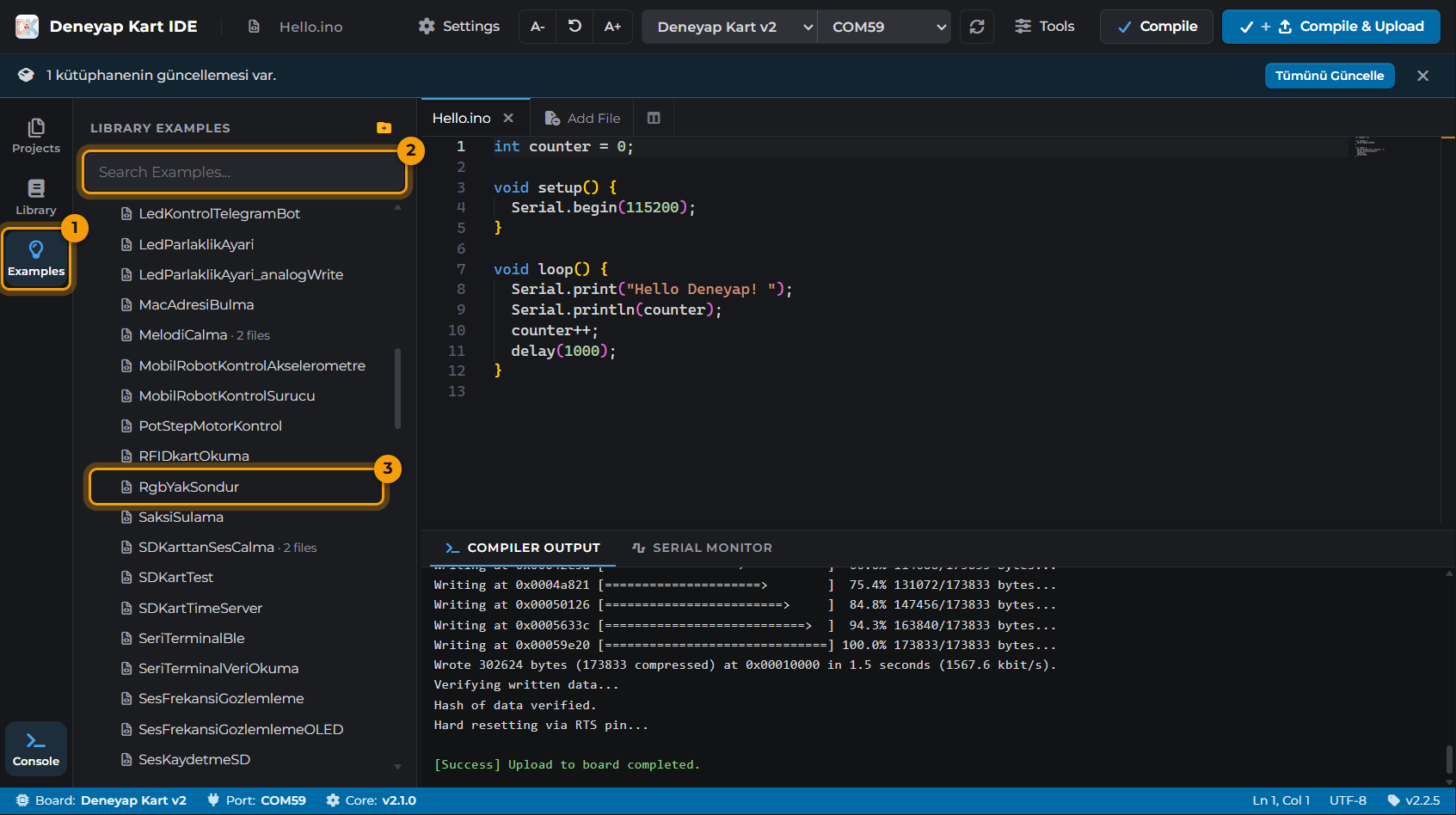
Examples panel: Deneyap → RgbYakSondur
Upload the example
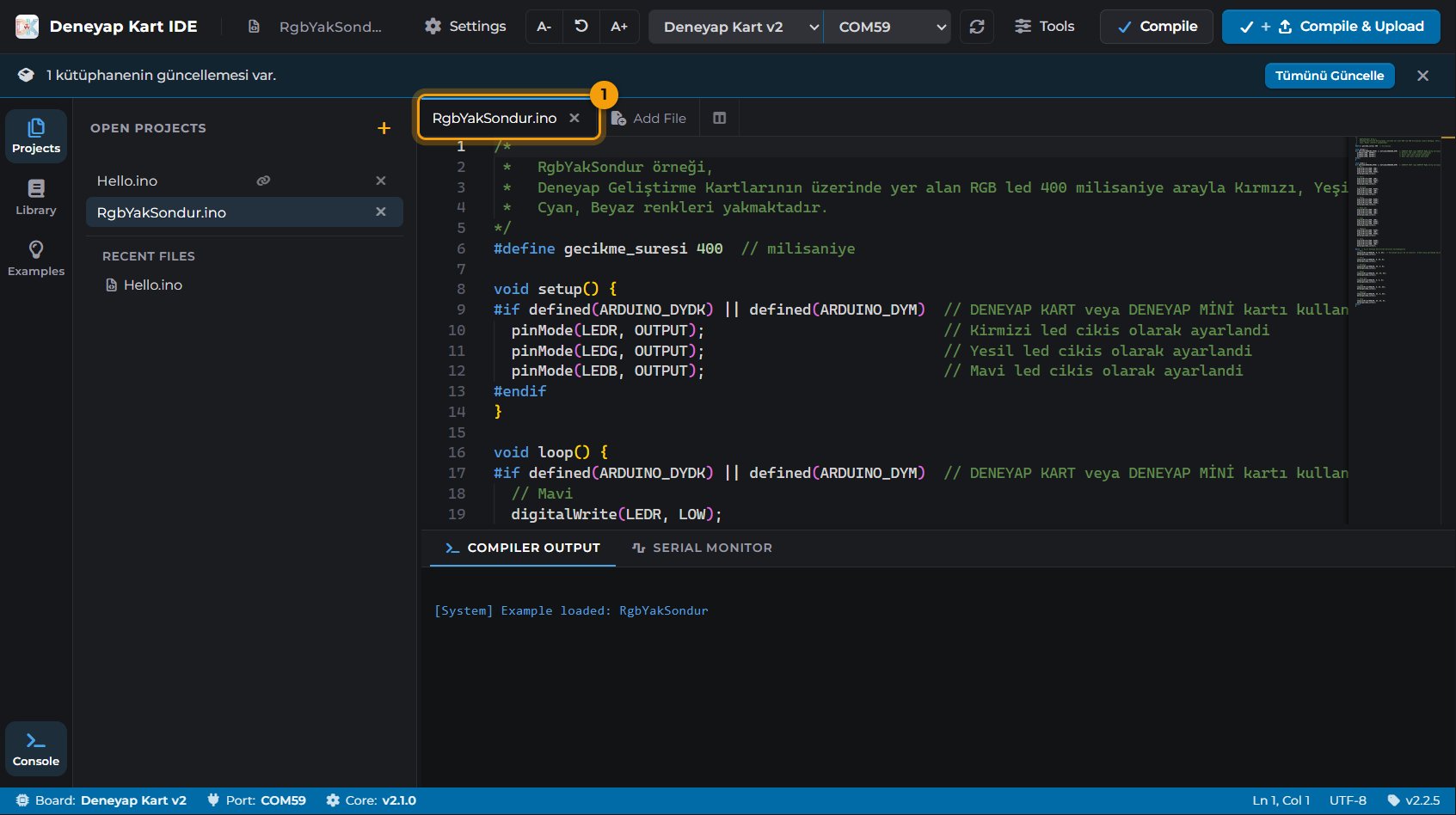
The opened example
7. Installing a Library
#include <Deneyap_Servo.h>) and LiquidCrystal_I2C for I2C LCD displays
(#include <LiquidCrystal_I2C.h>) come built in. When you search for them, they appear
with the Installed label.Open the Library panel
Search for the library
Enter.Install
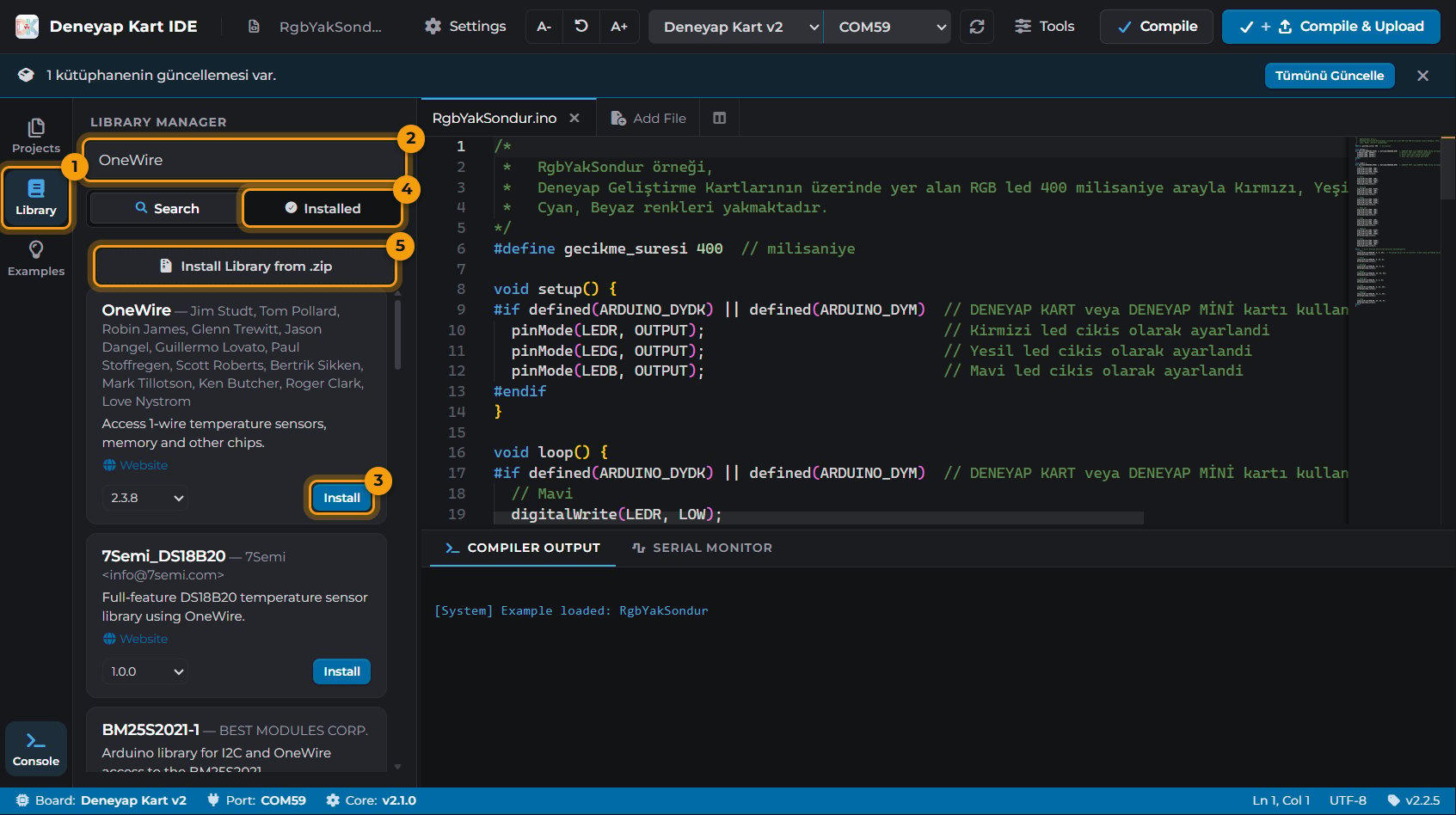
Library Manager
.zip file, use the
Install Library from .zip (5) button.
Common Situations
The port list is empty, my board does not show up
The port list is empty, my board does not show up
- Make sure the cable supports data transfer; try another cable.
- Plug the board into another USB port and press Refresh Ports.
- If your board needs a USB driver, follow the steps on the USB Driver Setup page.
- On Linux, if the port shows up but cannot be opened, see Errors and Solutions.
The upload says the port is busy
The upload says the port is busy
The upload cannot connect to the board
The upload cannot connect to the board
- Check that the correct board type is selected in the board list.
- Unplug the board, plug it back in and try again.
- If the problem persists, put the board into upload mode by hand: hold the BOOT button on the board, press and release RESET, then release BOOT. Then press Compile & Upload. On Deneyap Mini and Mini v2 the port number may change after this; select the new port from the port list. When the upload finishes, press the board’s RESET button to start the program.
The Serial Monitor shows garbled characters
The Serial Monitor shows garbled characters
Serial.begin(...) in your code. Set
both to the same value.The Serial Monitor shows nothing
The Serial Monitor shows nothing
- Make sure your code starts with
Serial.begin(...)and sends messages withSerial.print. - Messages in
setup()may have been sent before you connected; restart the program with the Reset Board button.
A "new Deneyap core version is ready" message appears at the top
A "new Deneyap core version is ready" message appears at the top