
Adding a Library to Arduino IDE
In the Arduino IDE, open the Library Manager as shown in the image below. In the window that appears, type the name of the library you want to add into the search bar; select your library and click the “Install” button.
Opening Arduino IDE Library Manager
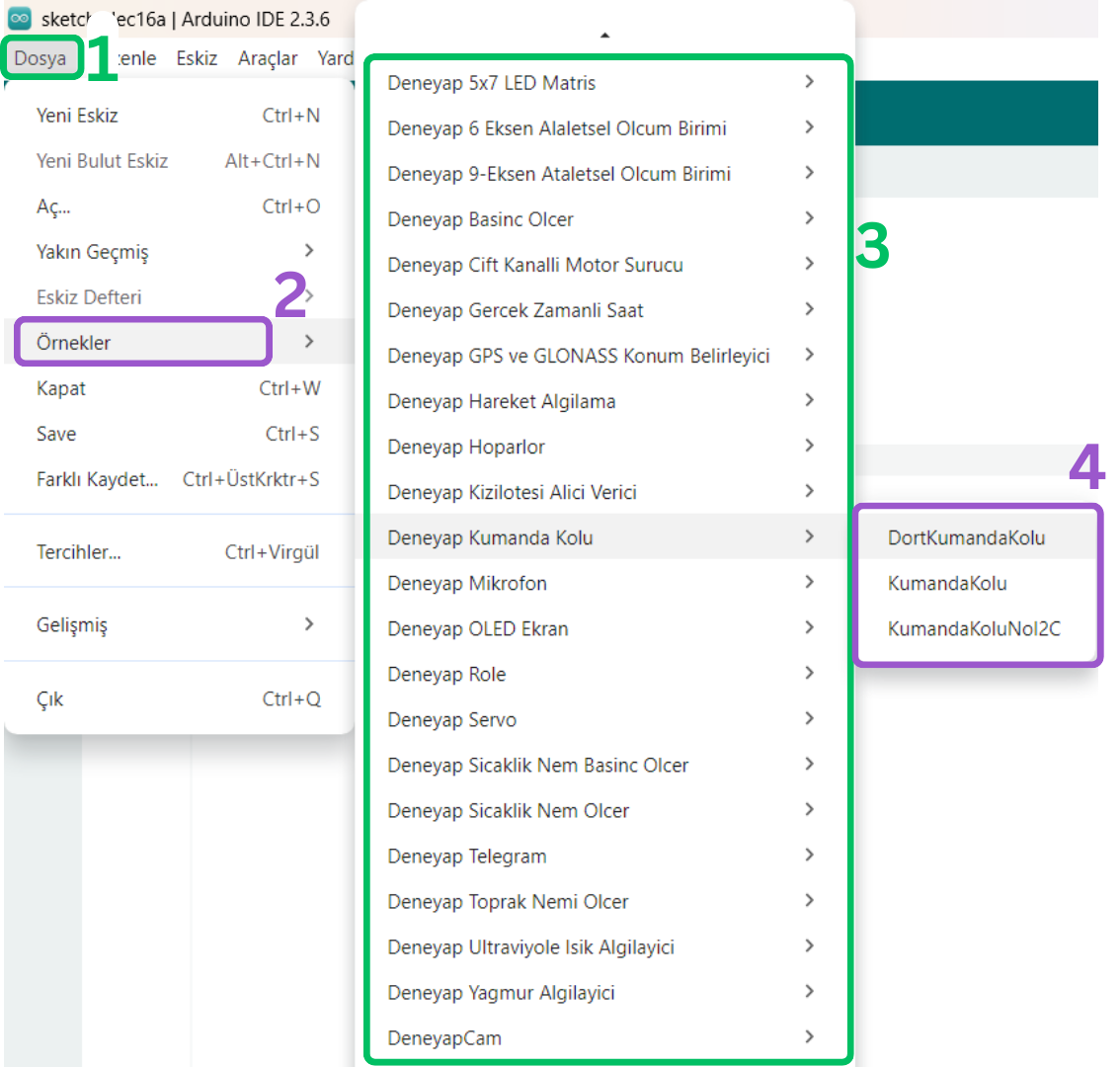
Arduino IDE Library Examples