In this section, the initial steps required to install the IDE and prepare the DENEYAP Kart development board for development will be explained, and you will be shown how to connect the DENEYAP Kart to your computer. In the following sections of the documentation, the software/hardware development processes and various project examples will be examined.
By the end of this section, you will gain experience in the following topics.
Downloading and using the DENEYAP Kart IDE application.
Preparing the DENEYAP Kart by installing the required software.
Developing your first project by connecting the Deneyap Kart to your computer.
DENEYAP Kart IDE ships as ready-to-use installers for Windows, macOS and Linux
(Debian / Ubuntu / Pardus). You do not need to install Arduino IDE, a compiler or Python
separately — every required tool is bundled with the application.
1
Download the installer
Download the file that matches your operating system (current version: v2.2.4).
Windows
Deneyap-Kart-IDE-Windows.exe
Linux · Pardus
Deneyap-Kart-IDE-Linux.deb
macOS · Apple Silicon
Deneyap-Kart-IDE-macOS-arm64.dmg
macOS · Intel
Deneyap-Kart-IDE-macOS-x64.dmg
2
Install it
Windows: Double-click the .exe file you downloaded. There is no setup wizard; it
completes on its own within a few seconds and does not ask for administrator rights.
macOS: Open the .dmg file and drag the Deneyap Kart IDE icon into your
Applications folder.
Linux / Pardus: Double-click the .deb file; the Software Center opens and you only
need to press Install.
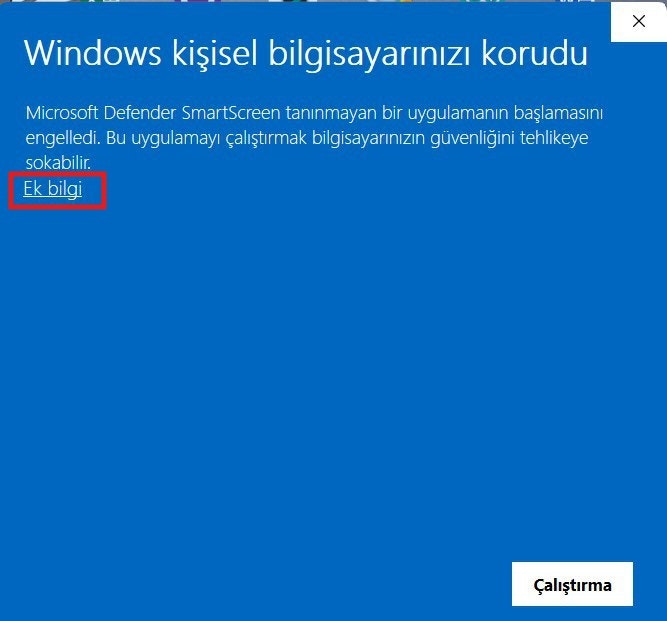
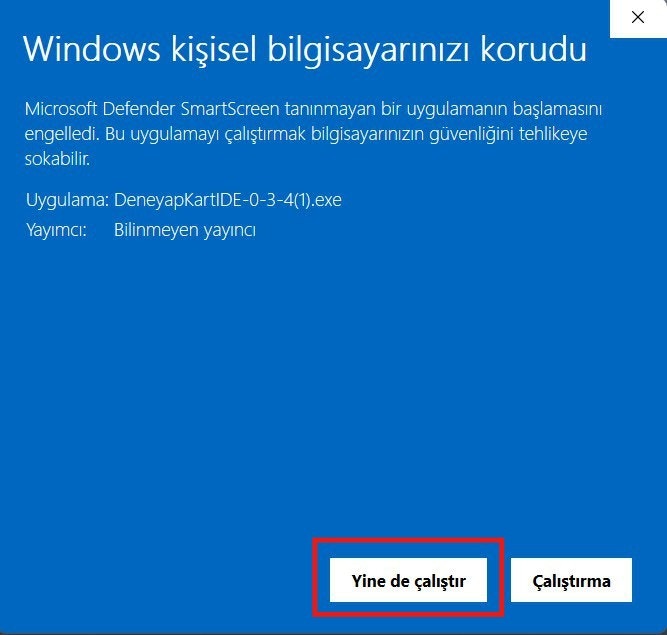
On Windows, because the installer is not code-signed, a blue
“Windows protected your PC” (SmartScreen) screen may appear. This is not a virus
alert. Continue with More info → Run anyway.
SmartScreen Screen That Appears When Running the Installer
Screen That Appears After Clicking the More Info Button
3
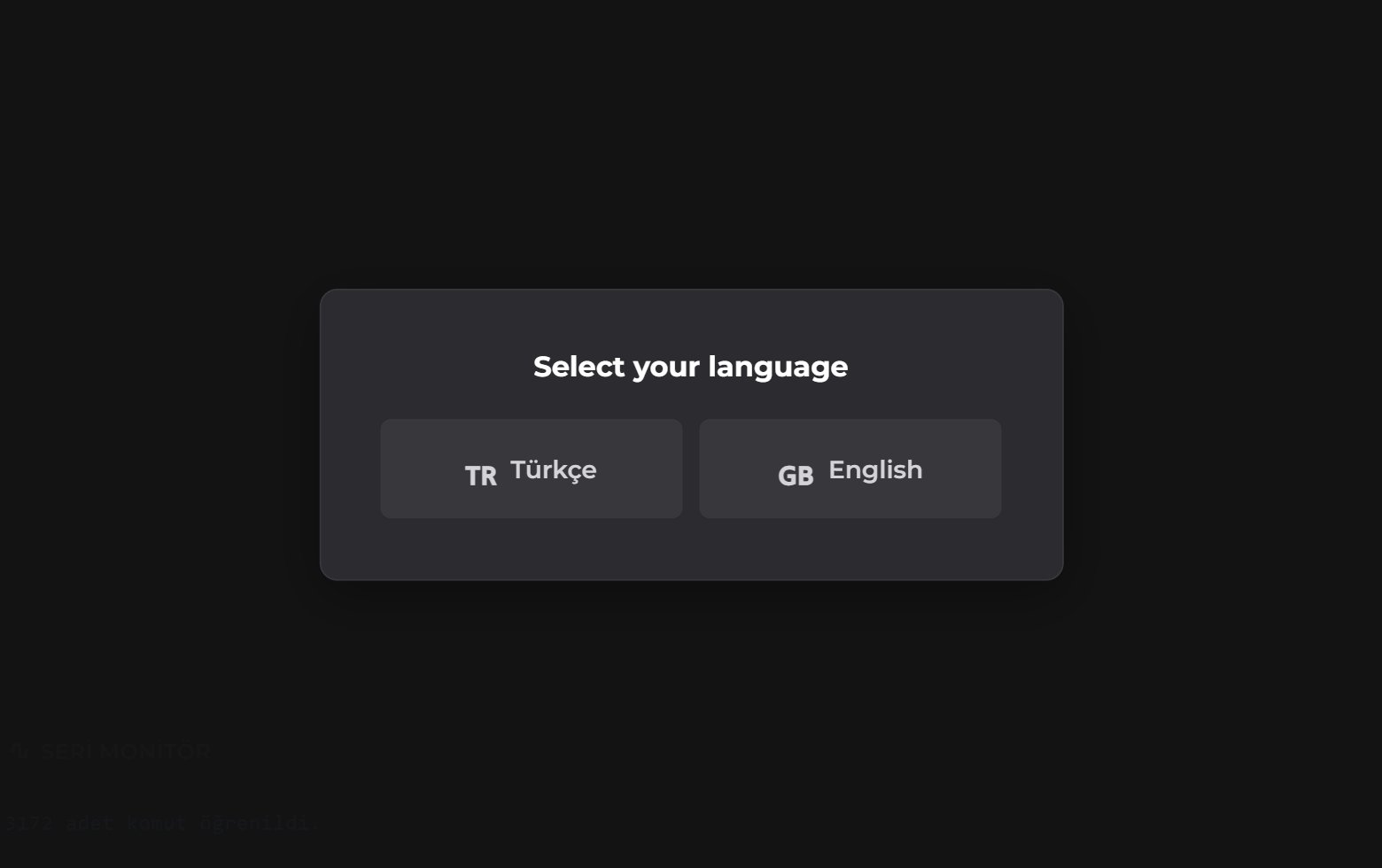
Choose the interface language
The first time you open the application, you are asked to choose the interface language.
You can change your choice later from Settings → Language.
Language Selection Screen on First Launch
4
Wait for the initial setup to finish
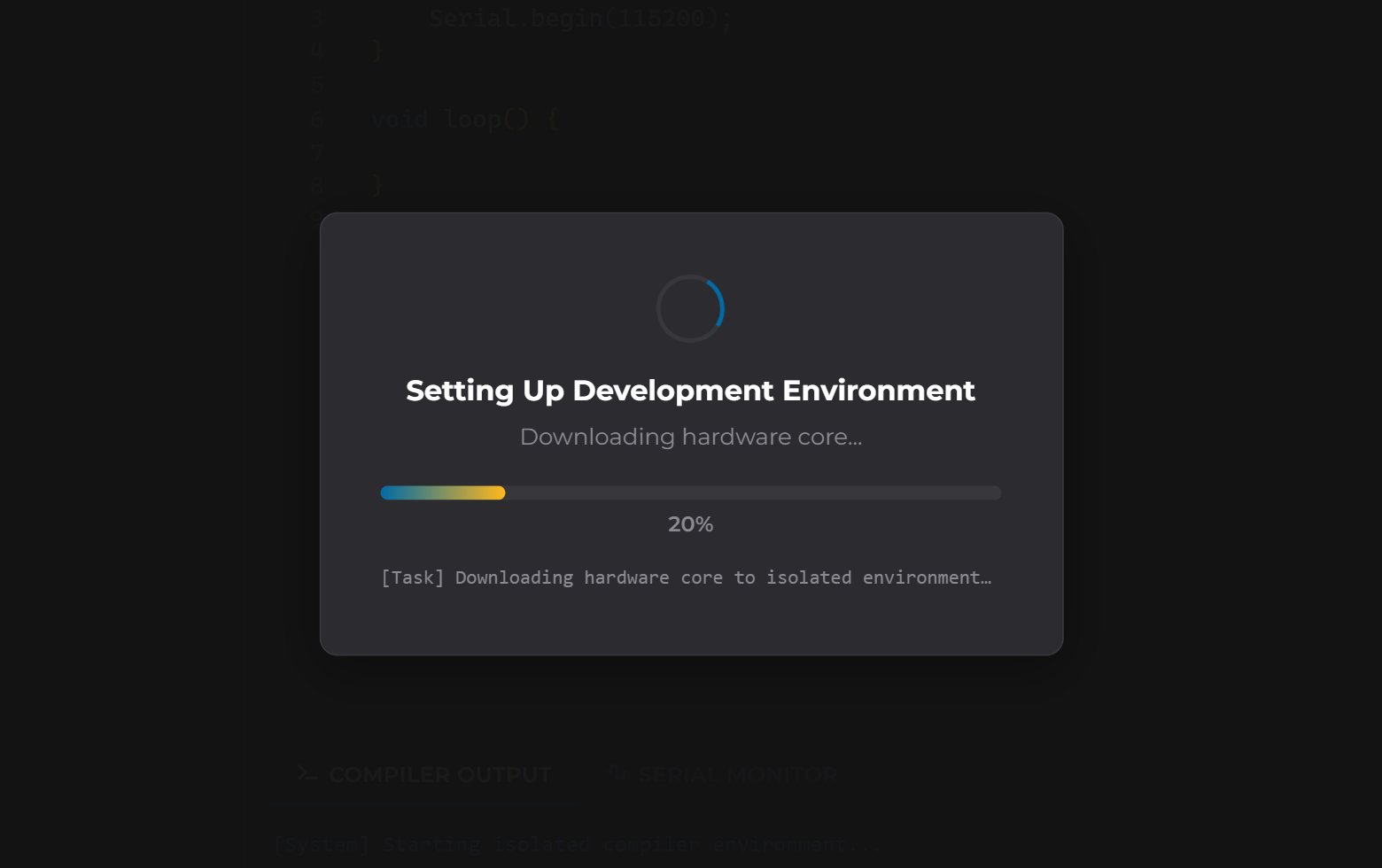
After the language selection, the Setting Up Development Environment screen appears
while the application downloads the hardware core, the compiler toolchain and the required
libraries. This runs only once, on the first launch, and may take a few minutes
depending on your internet speed. When it finishes, the interface appears.
Setting Up Development Environment Screen
To access the detailed installation with images (including the macOS and Linux steps),
click here.
If you encounter any issues during installation, click here
to access frequently encountered errors and their solutions.
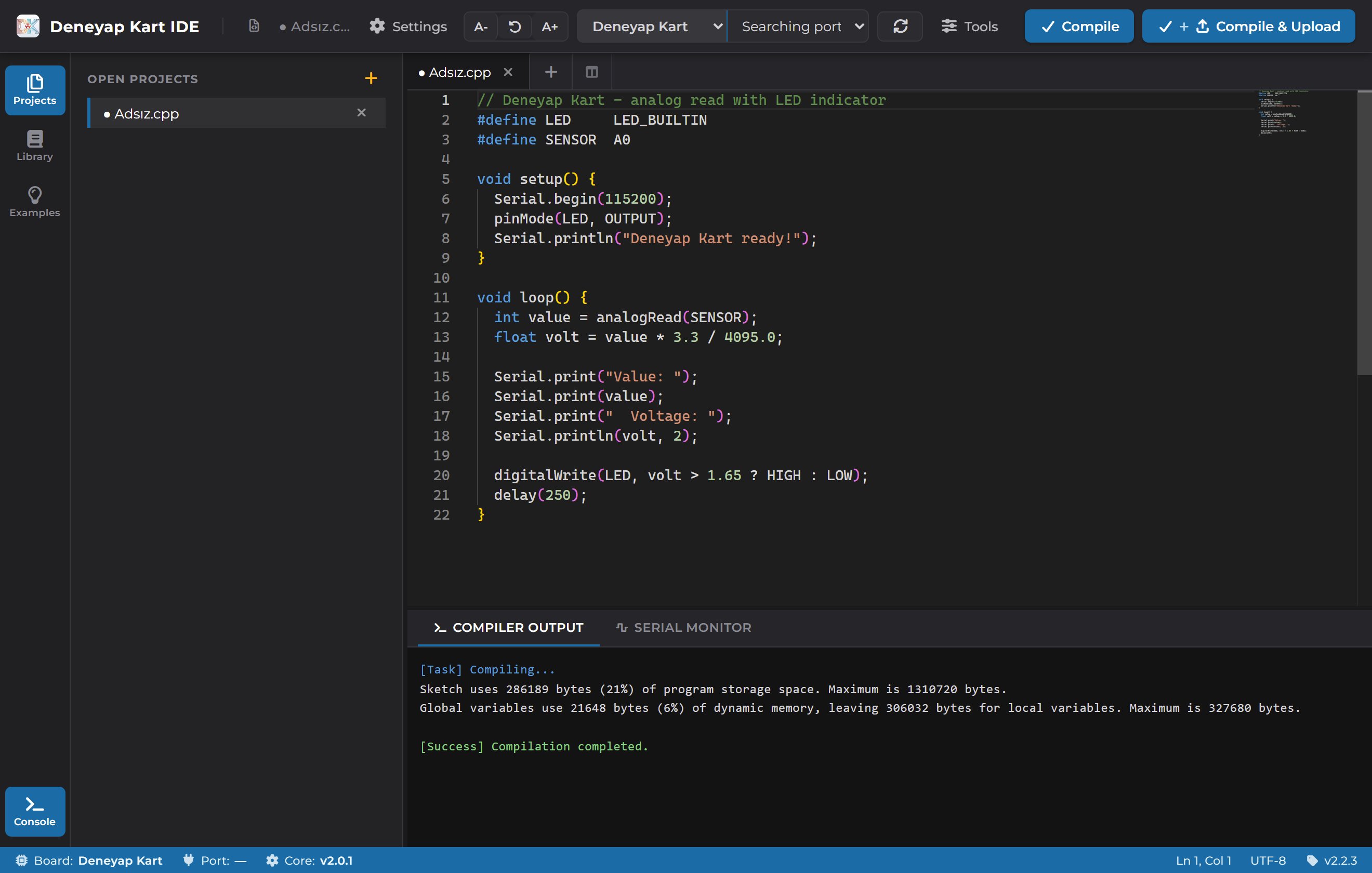
Once the installation is complete, the IDE appears. To write code and upload it to the
board, you select your board and its port, then compile and upload.
Deneyap Kart IDE Main Screen
1
Connect the board to your computer
Plug the DENEYAP Kart into your computer with a USB cable.
If this is the first time you connect the board, the USB driver has to be installed.
See the Installing the USB Driver page.
2
Select your board
From the left-hand list in the top toolbar, select the DENEYAP Kart variation
you are using.
Board list on the left, port list and Refresh Ports button on the right
The list contains these variations: Deneyap Kart, Deneyap Kart v2,
Deneyap Kart 1A, Deneyap Kart 1A v2, Deneyap Mini, Deneyap Mini v2
and Deneyap Kart G.
3
Select the port
From the right-hand list, select the port your board is connected to — it looks
like COM3 on Windows and /dev/ttyUSB0 on macOS and Linux. The list refreshes
itself every 3 seconds; to refresh it immediately, use the Refresh Ports button
next to it.
Bluetooth serial ports never appear in the list; the application filters them
out on its own, with no setting to configure. Only boards connected over USB and
boards on your network (wireless/OTA) are listed.
If no port appears even though your board is connected, see the
Frequently Asked Questions page for the solution.
4
Verify your selections
The status bar at the very bottom of the screen shows what you selected: Board,
Port and the installed Core version. A field shows — when nothing is
selected. For the full status bar, see the
Deneyap Kart IDE Overview page.
If you pick the wrong variation, the IDE shows this warning at the top of the screen:
”⚠ The board on … doesn’t seem to match your selected board type…”
Double-check your board selection before uploading.
5
Compile and upload the code
After writing your code, the Compile button only compiles it, while
Compile & Upload compiles it and uploads it to the board.
The Compile and Compile & Upload buttons
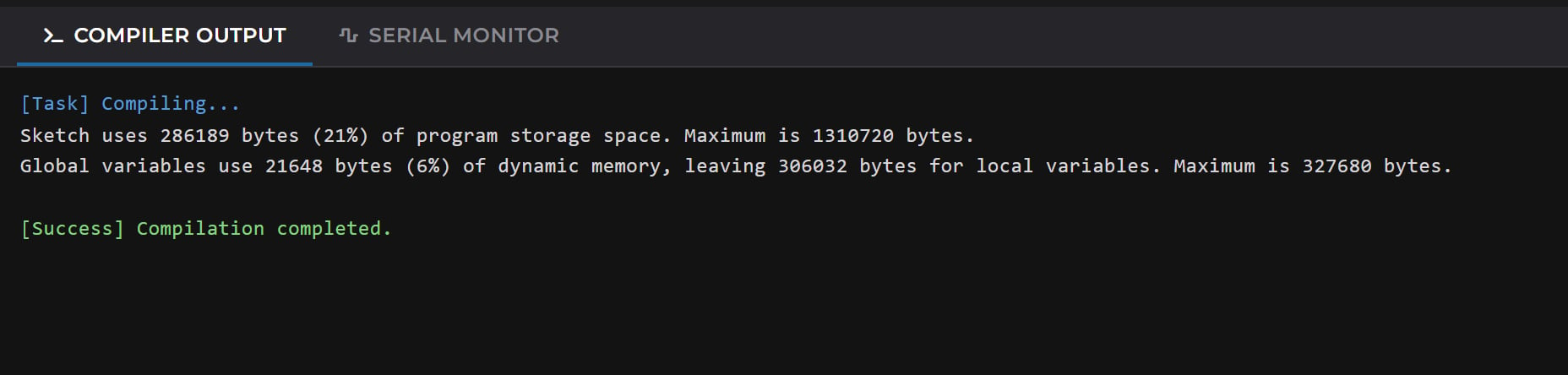
The compiler’s output streams line by line into the Compiler Output tab in the
bottom panel. On success it ends with a summary of how much space the sketch takes
on the board, followed by “Compilation completed.”
Output of a successful build
While an operation is running, a Stop button appears in the toolbar so you can
cancel a build or an upload. If you hit an error, visit the
Frequently Asked Questions page.
6
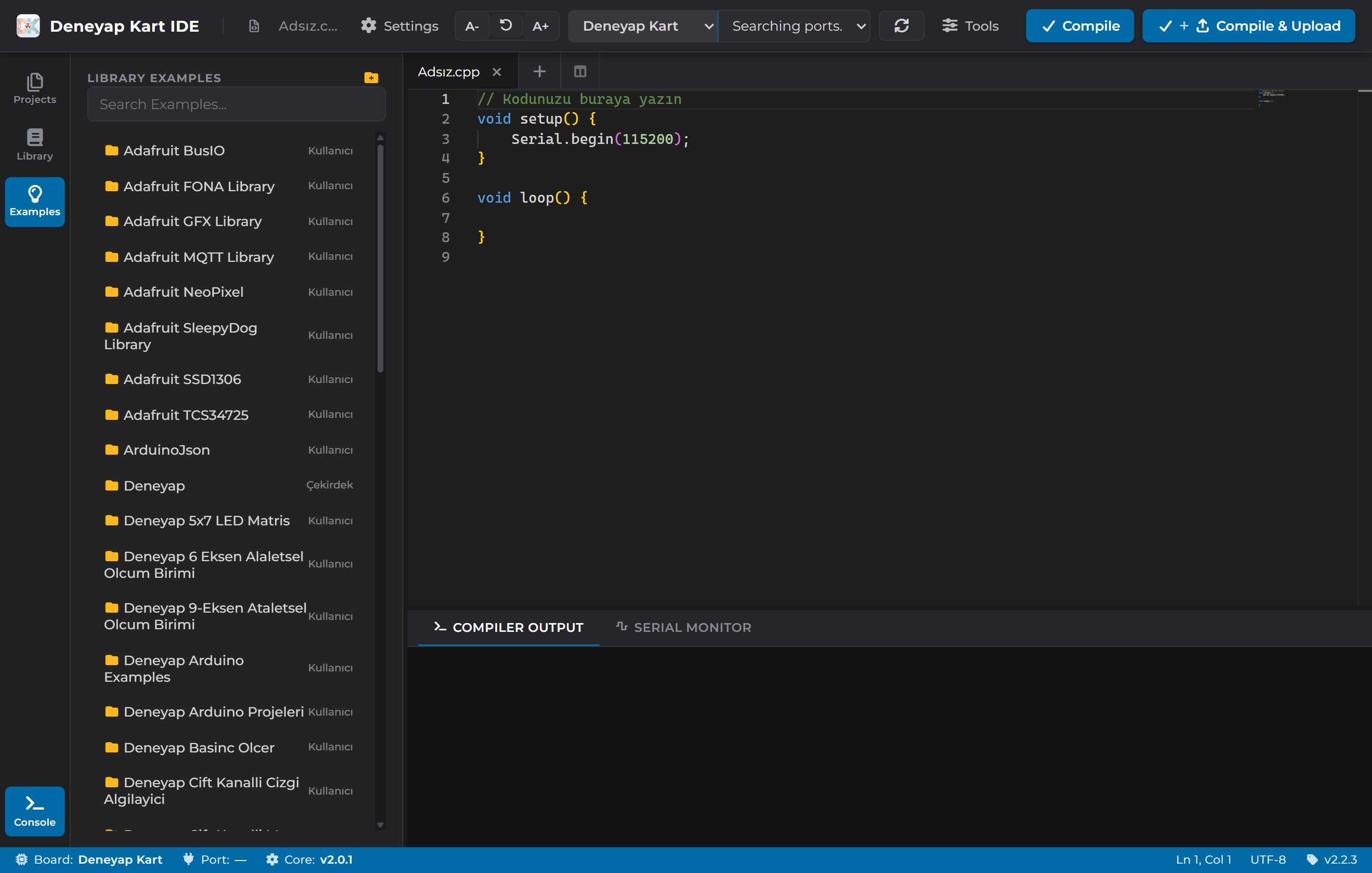
Try the ready-made examples
The Examples panel in the activity bar on the left opens the ready-made example
sketches of your installed libraries with a single click.
You are now ready to develop with the DENEYAP Kart! You can click here to access examples by level, and click here to access all examples related to DENEYAP Kart.