> ## Documentation Index
> Fetch the complete documentation index at: https://docs.deneyapkart.org/llms.txt
> Use this file to discover all available pages before exploring further.
# Installing the USB Driver
* In order to use the Deneyap Kart on your computer, the Deneyap Kart USB-UART driver must be installed. If the driver is not installed on your Windows operating system, your Deneyap Kart will not be detected.
Open the **“Control Panel”** application on your computer.
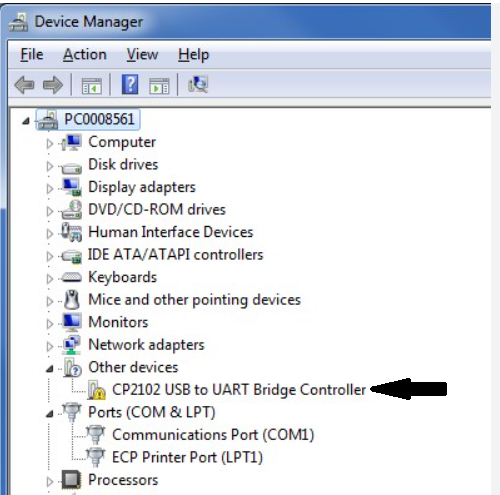
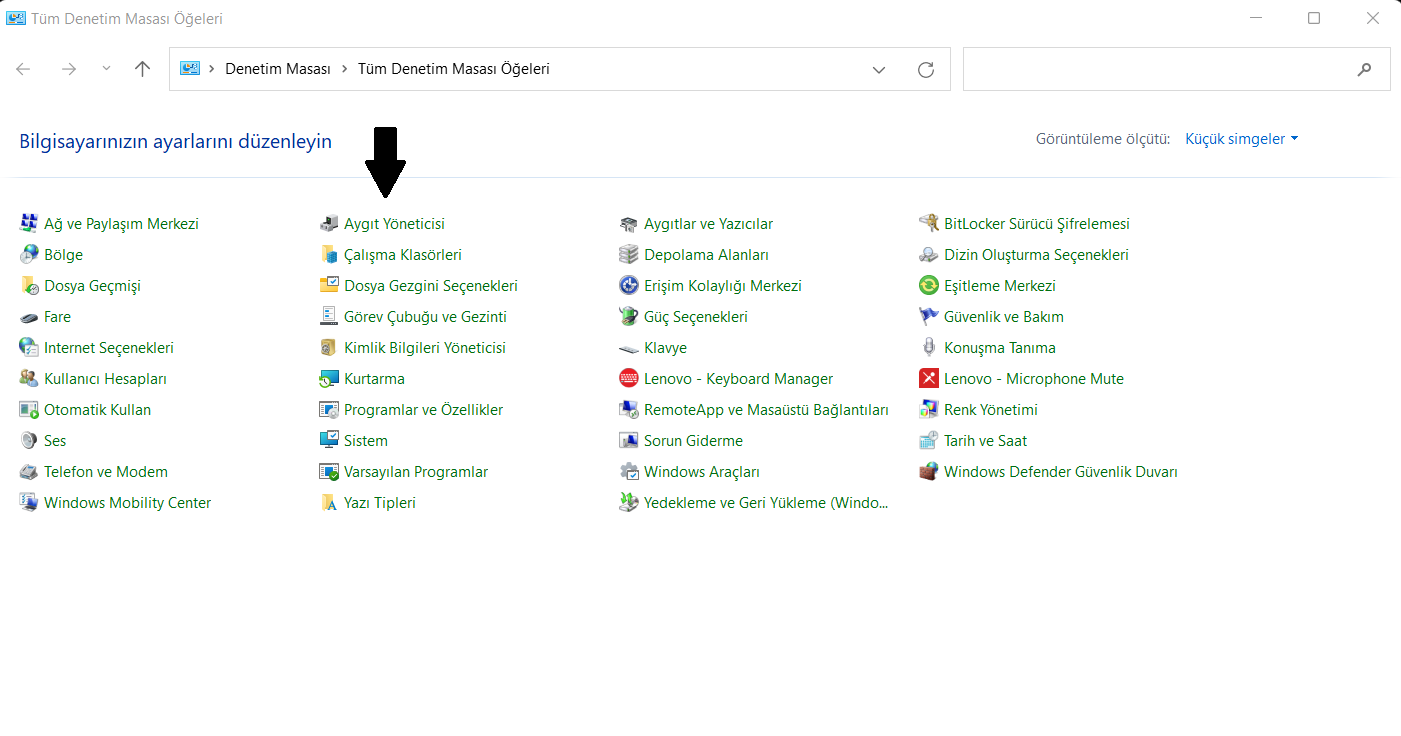 * From the window that opens, select the **“Device Manager”** application. Under the **“Other Devices”** category, the entry **“Silicon Labs CP210x USB to UART Bridge”** corresponds to the Deneyap Kart. This entry will have a warning icon (exclamation mark) displayed next to it.
 * If the drivers are not installed automatically when you connect the Deneyap Kart to your computer, you can download and install the appropriate driver for your operating system by selecting the **“Downloads”** section from the link below.
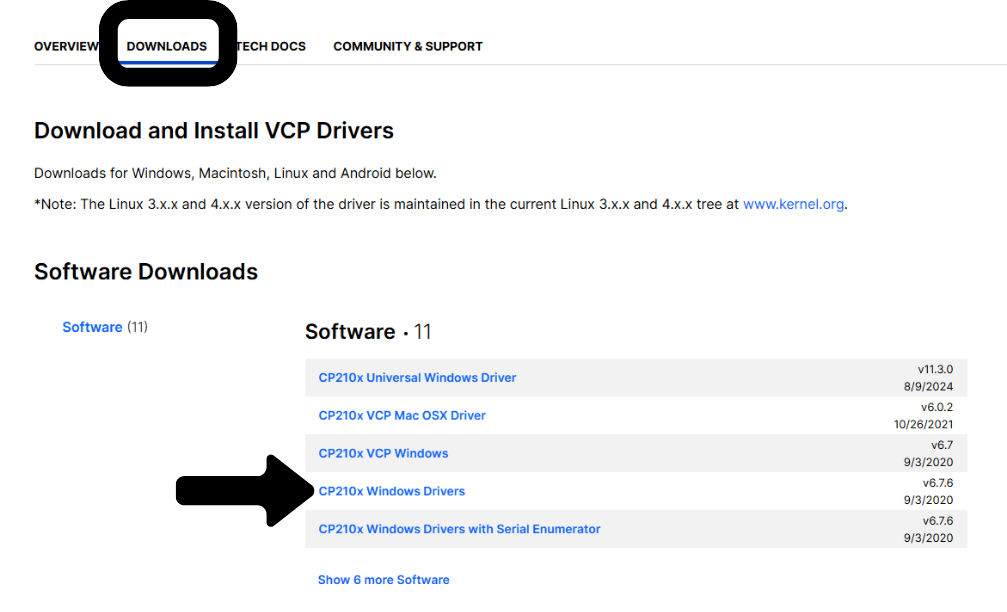 * [Click here to go to the USB driver page.](https://www.silabs.com/developers/usb-to-uart-bridge-vcp-drivers)